App Settings
The Settings section allows you to update your profile, report a technical problem with the app, or sign out of the application.
Accessing Settings
To access the settings menu, expand the top bar and click the gear icon:
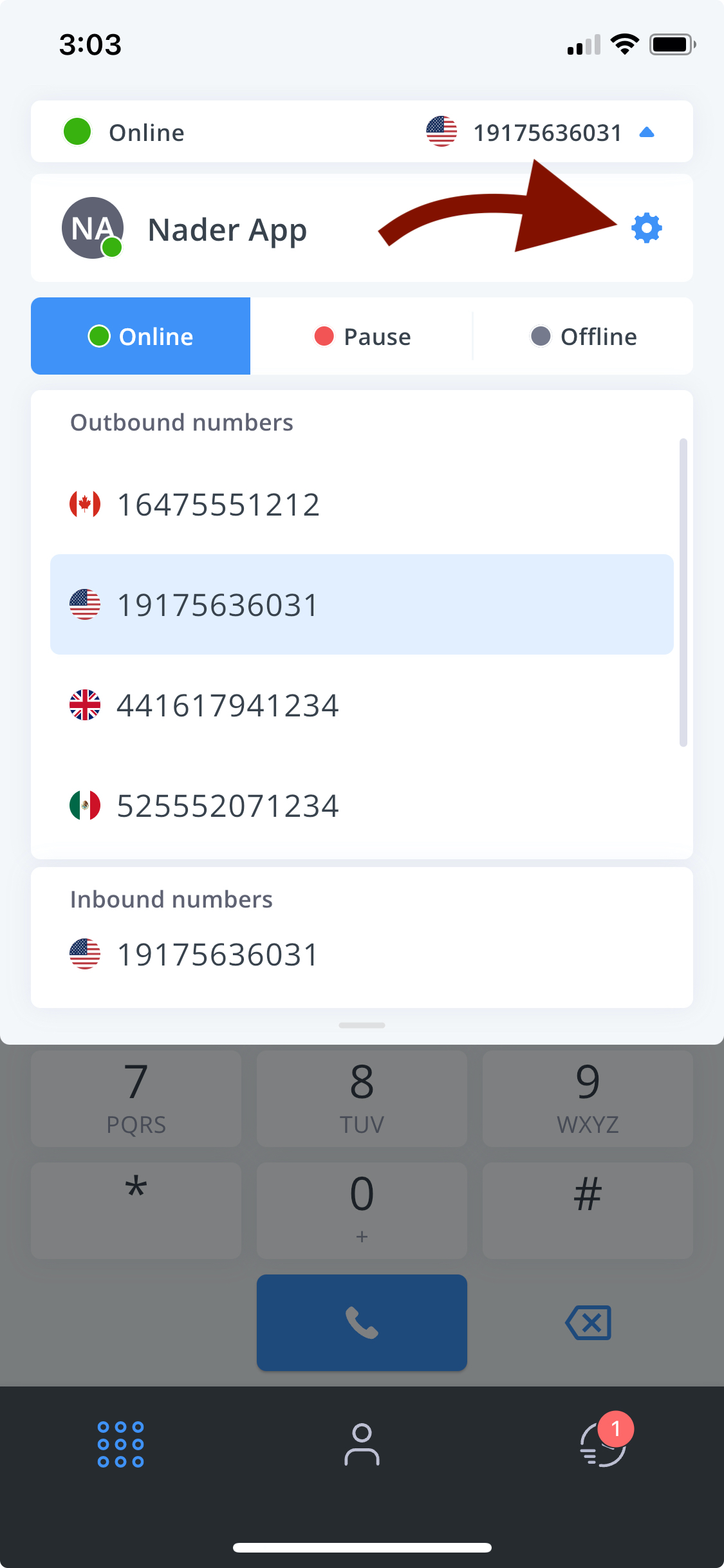
Settings Menu
The settings menu provides several options organized into sections:
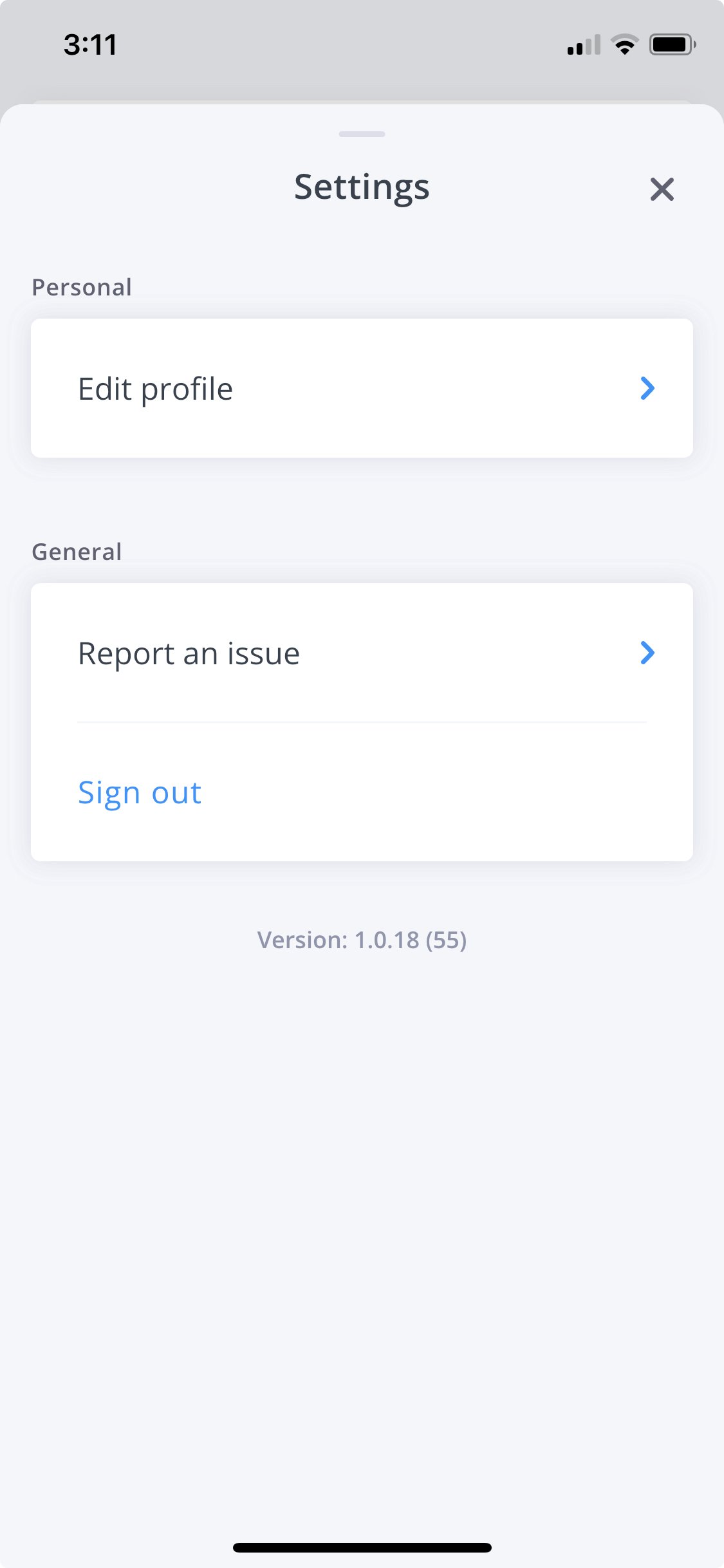
Personal
- Edit Profile: Update your personal information including first name, last name, job title, and department
General
- Report an Issue: Send a bug report about the phone system app itself — technical problems only, like a button that doesn't respond or a screen that won't load
- Sign Out: Log out of your current session
This form goes to the app's development team and covers technical problems with the phone system app itself — nothing else. For anything involving your FlyNumber account — billing, buying or managing numbers, SMS, porting, or how your calls are routed — open the chat instead. The chat bubble appears whenever you're logged in to your FlyNumber account at panel.flynumber.com.
The app version number is displayed at the bottom of the settings menu.
Reporting Issues
Use this only when something in the app itself misbehaves — for example, a button that does nothing when tapped, the app crashing, or a call screen freezing. If your question is about your FlyNumber account or service (billing, numbers, SMS, porting, call routing), skip this form and open the chat while logged in to panel.flynumber.com.
When you hit a technical problem with the app, submit a detailed report:
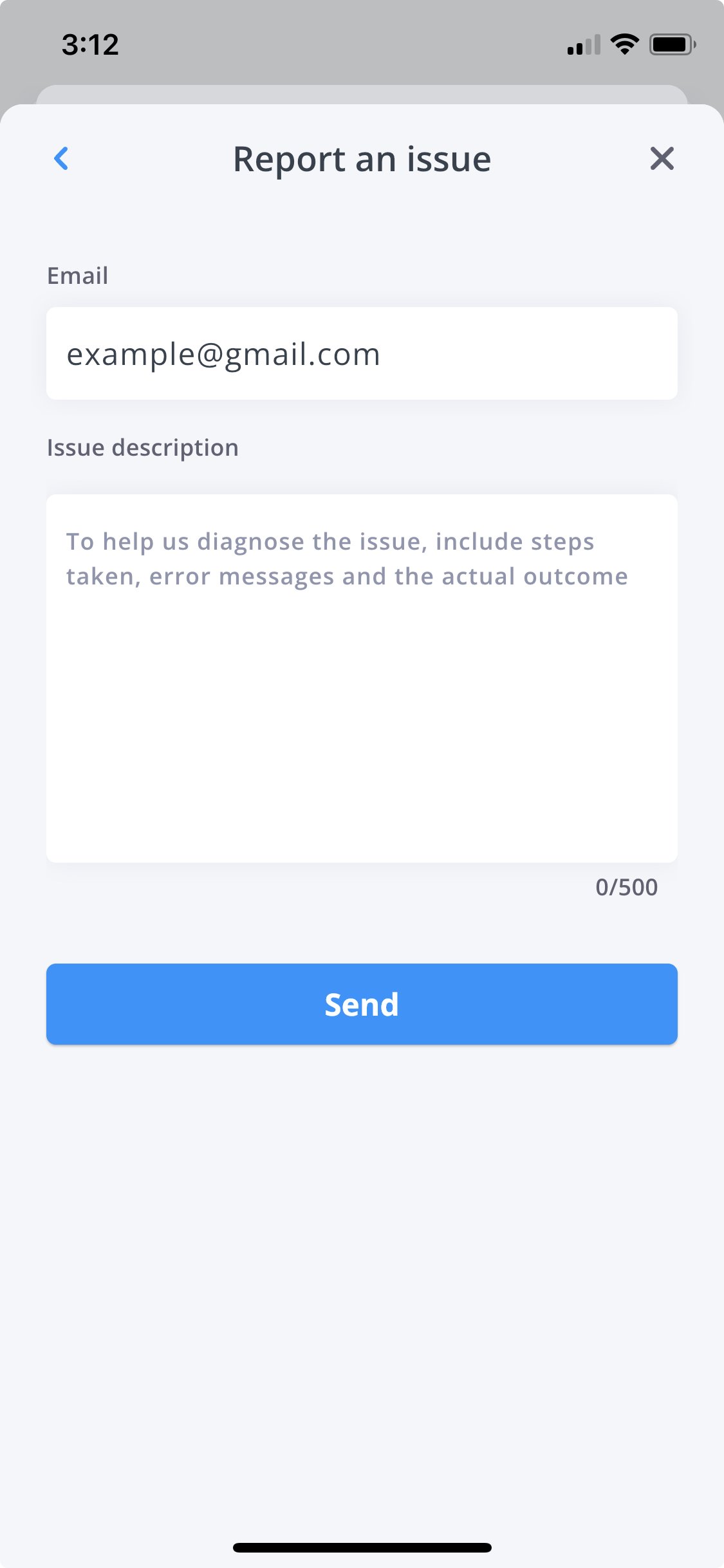
To submit an issue report:
- Navigate to Settings > Report an Issue
- Enter your email address
- Provide a detailed description including:
- Steps that led to the issue
- Any error messages received
- The actual outcome
- Click Send to submit your report
When reporting an app bug, be as specific as possible about what happened. This helps the development team diagnose and resolve the problem more quickly.